InputConfig: Controlling a Mac with whatever device works for you
June 25, 2026, updated August 2026 | Projects, Accessibility, Engineering
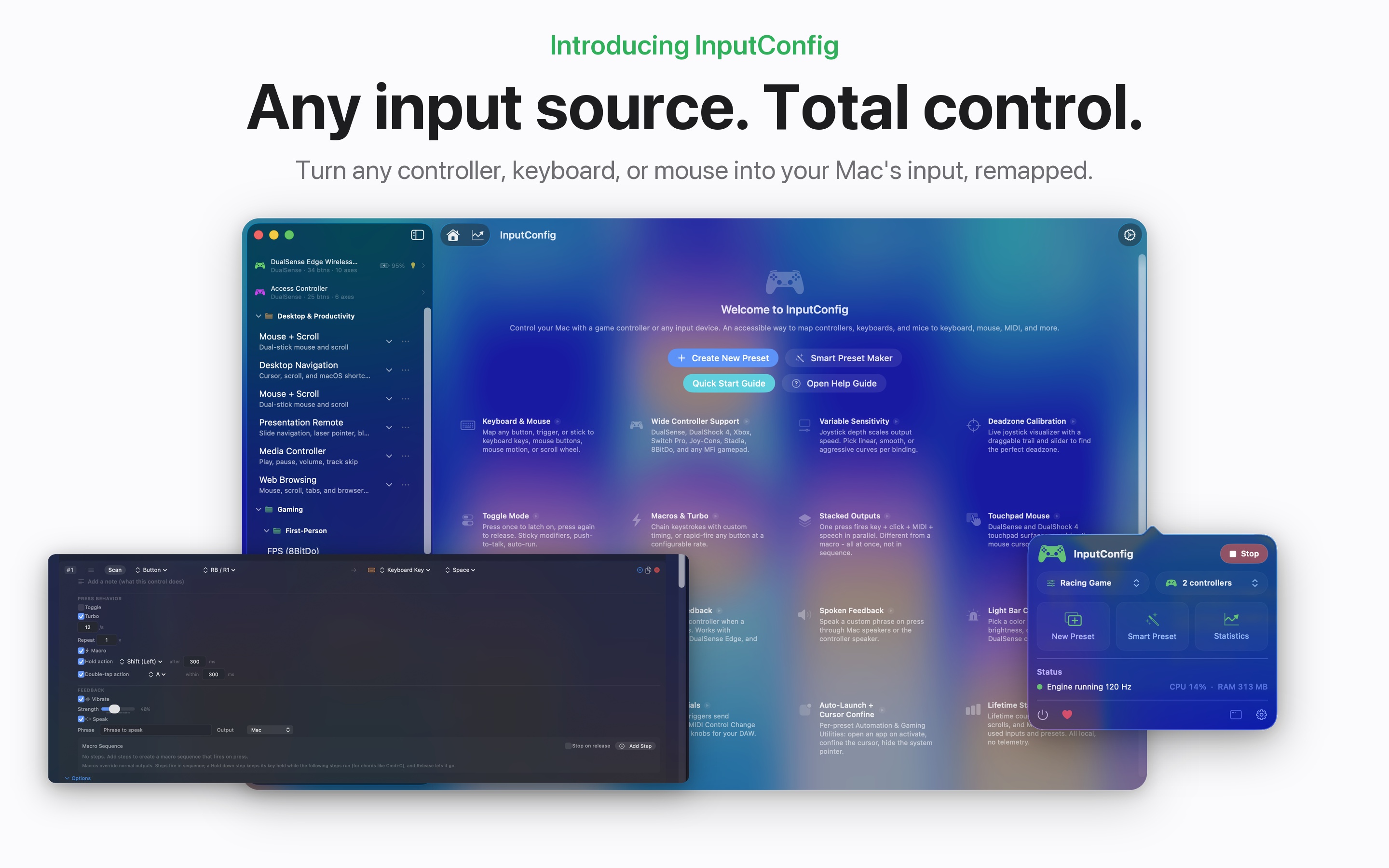
InputConfig is a free, open-source, accessibility-focused macOS app that I built so a person can run their Mac with whatever device actually works for their body. It is live on the Mac App Store, and it turns game controllers, keyboards, mice, and MIDI gear into anything the computer can do. It grew out of an older project of mine called JoystickConfig, and it exists because the standard ways of putting input into a computer do not work very well for my hands. I did not set out to make a clever utility. I set out to make my own computer usable again, and this post is the long version of how it works, because the machinery underneath is where the interesting problems live.
Why I built it
I have a progressive neuromuscular disease that weakens my hands and limits my dexterity. Keyboards and trackpads assume a kind of fine, steady control that I do not reliably have, and one-size-fits-all key mappings assume your fingers can reach and hold things that mine often cannot. For a long time I worked around that with brute effort, but effort runs out, and the gap between what I wanted to do and what my hands would let me do kept getting wider. If you can map a comfortable device to do anything on the Mac, you stop fighting the computer and start using it again.
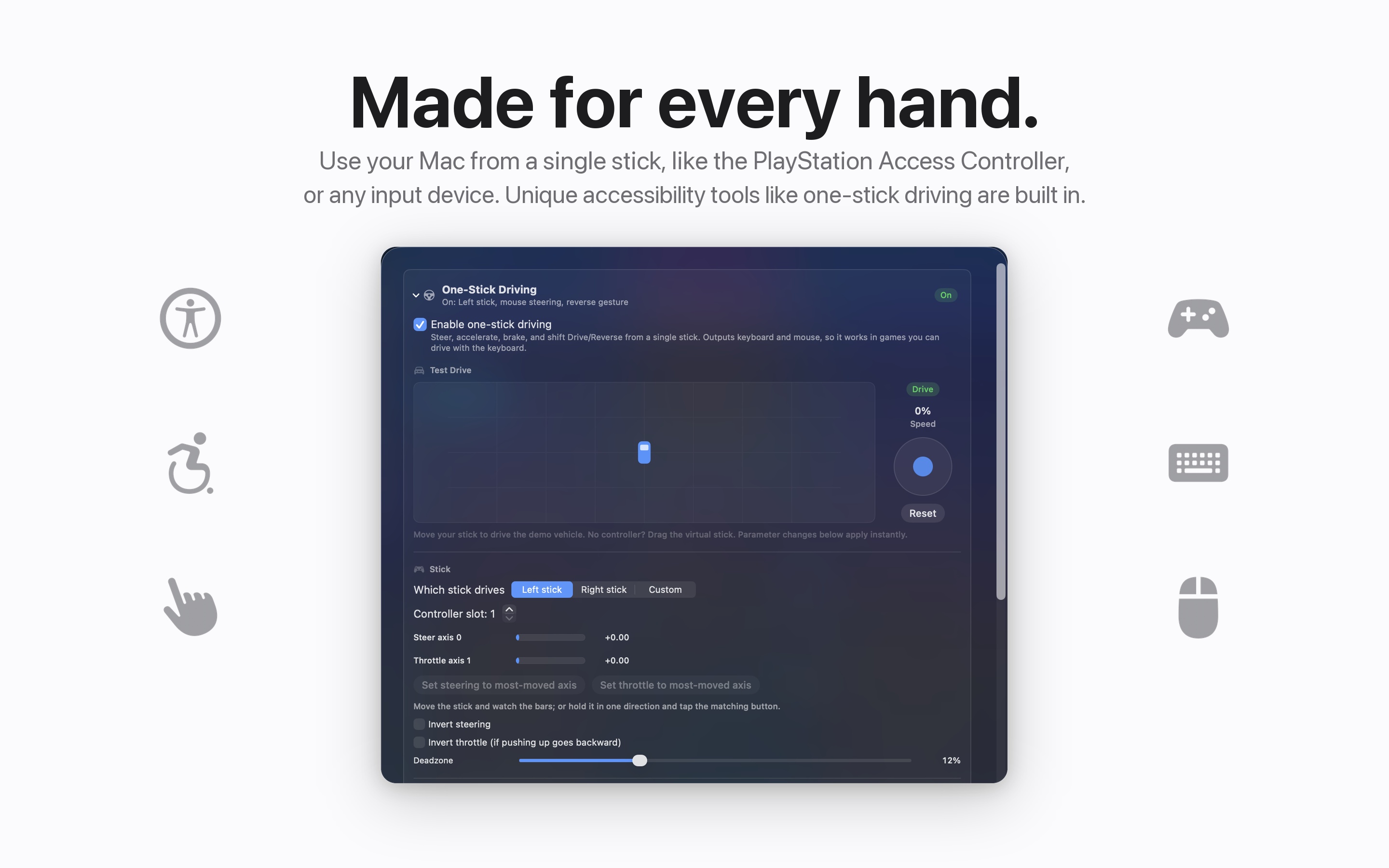
A controller that sits easily in my hands, with big buttons and sticks I can actually feel, becomes a full way to drive the machine. The app supports the PlayStation Access Controller, Sony's adaptive controller, alongside DualSense, DualSense Edge, DualShock 3 and 4, Xbox, Switch Pro, Joy-Cons, 8BitDo, the Steam Controller, fight sticks, wheels, and any MFi gamepad. I built the accessibility I needed, and then I cleaned it up enough that other people could use it too.
The engine
At the center is a mapping engine that polls every input source at 120 Hz, drops to 60 on battery, and can be tuned anywhere from 30 to 240. Four kinds of source feed it in parallel: Apple's GameController framework for the controllers it understands, a raw HID layer for the ones it does not, a helper for the Steam Controller, and device-independent sources for external keyboards, mice, and MIDI gear. Everything is normalized into one common state, same button numbering, same up-positive stick convention, so a preset does not care what hardware is underneath it.
The output side is the part people ask about most. Synthetic key and mouse events are posted at the HID event tap, below the window server's per-app trust filtering, which is the same technique tools like Karabiner use and the reason a sandboxed App Store app can remap input system-wide at all. Every event the app posts is stamped with a marker so its own keyboard listener recognizes and ignores it, otherwise a controller button mapped to a key would hear its own output as fresh input and loop forever. Typed text goes out in twenty-character Unicode chunks split on grapheme boundaries so emoji never get cut in half, and modifier state is unioned onto every synthesized key, which is the fix that made Cmd+C actually copy instead of typing a lonely c.
Press a control, bind it
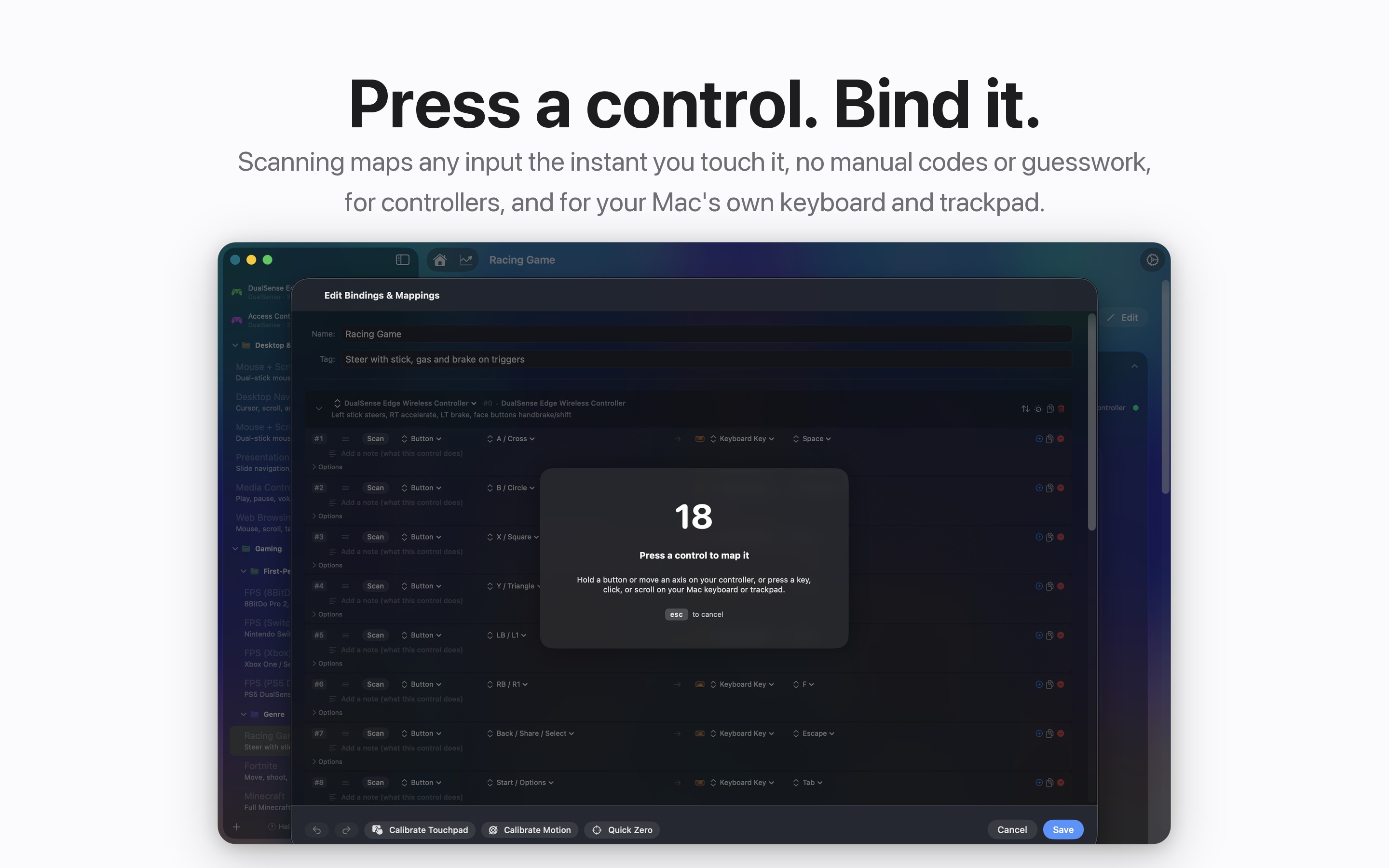
Presets are plain JSON on disk, one file per preset, written atomically, with every advanced field optional so a preset saved by an old version never loses data in a new one. Before each save the previous file is snapshotted into a version history capped at ten, throttled so typing in a notes box does not burn through it. If you do not want to build from scratch, there are 431 built-in presets, covering games, creative and productivity apps, and accessibility workflows like VoiceOver Navigation and Menu Bar and Dock control.
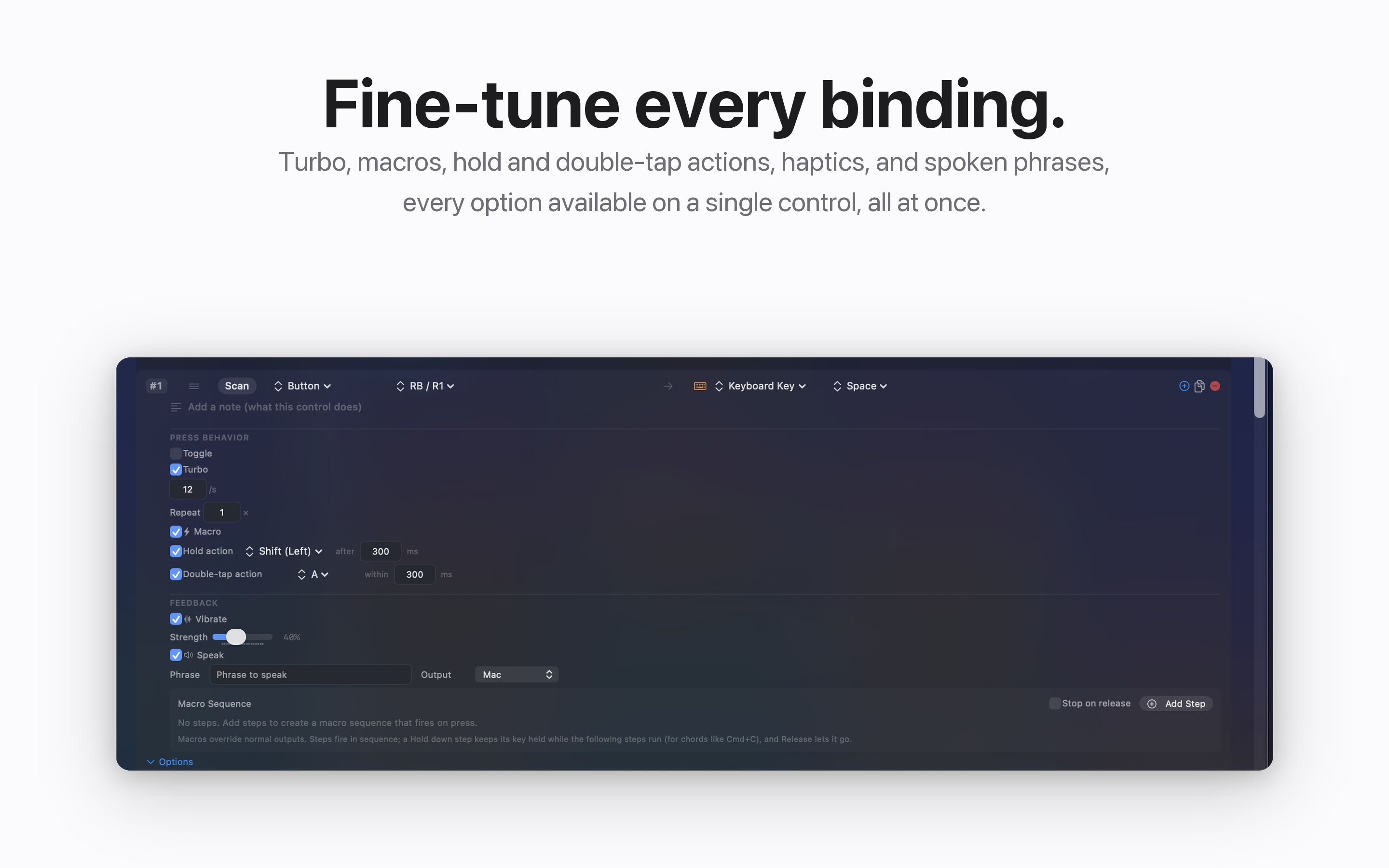
Per binding, there is a lot of machinery hiding behind small checkboxes. Turbo runs at up to 60 presses a second with the release scheduled at 40 percent of the interval. Hold and double-tap detection use clamped timing windows, and a binding with a hold action deliberately fires nothing on press, because which action that press means has not been decided yet. Macros run on a background queue with step-level down, up, and tap semantics so one macro can hold a real chord, and every scheduled action carries a generation counter that gets checked before it fires. Stop a preset mid-macro and the whole chain abandons immediately and releases its held keys newest-first, which is the systematic answer to the oldest remapping bug there is: the stuck key.
The math between your hand and the cursor
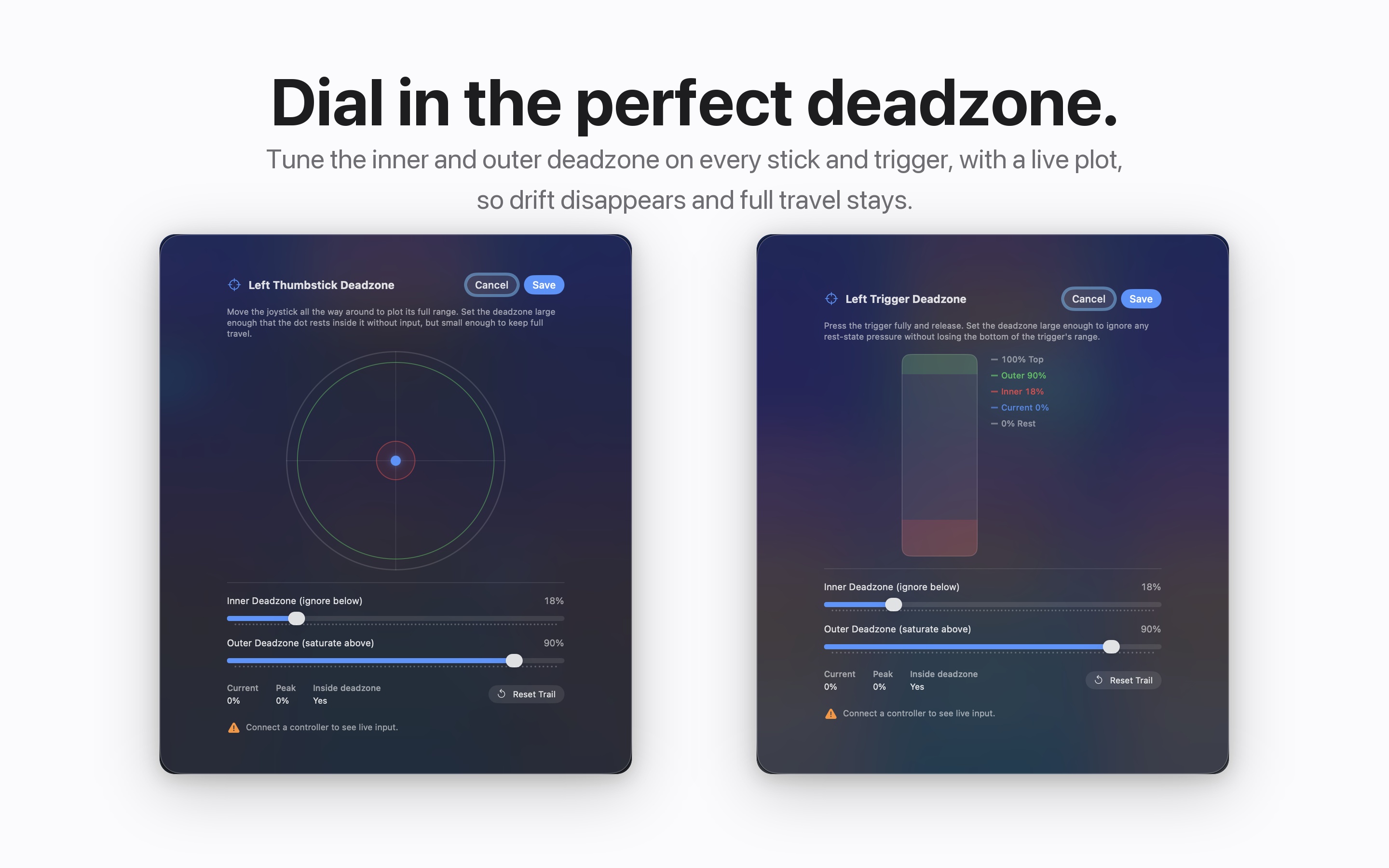
Analog input goes through a fixed order of operations that matters more than it looks. First the deadzone remap: an inner deadzone where nothing registers, an outer deadzone where the stick counts as fully pushed, and the range between them stretched back to a clean zero-to-one. Only then does the response curve apply, linear, squared for a gentle middle, or square-root for fast response off center, so the curve shapes your usable range instead of the raw hardware range. With variable sensitivity on, stick depth maps to output speed continuously, and a stick pushed diagonally accumulates its X and Y into a single mouse event per frame so diagonals are actually diagonal.
My favorite detail in this path is invisible: sub-pixel carry. A gentle push on a slow setting produces fractions of a pixel per frame, and truncating those to zero every frame means the cursor simply refuses to move for the people who need fine control the most. So the fractional remainder carries over from frame to frame, and the cursor creeps exactly as slowly and smoothly as your hand asked it to. A deadzone is a tremor filter. A sensitivity curve makes a weak push go far. Gamer features and accessibility features are the same features. That overlap is not a coincidence I stumbled into, it is the entire point.
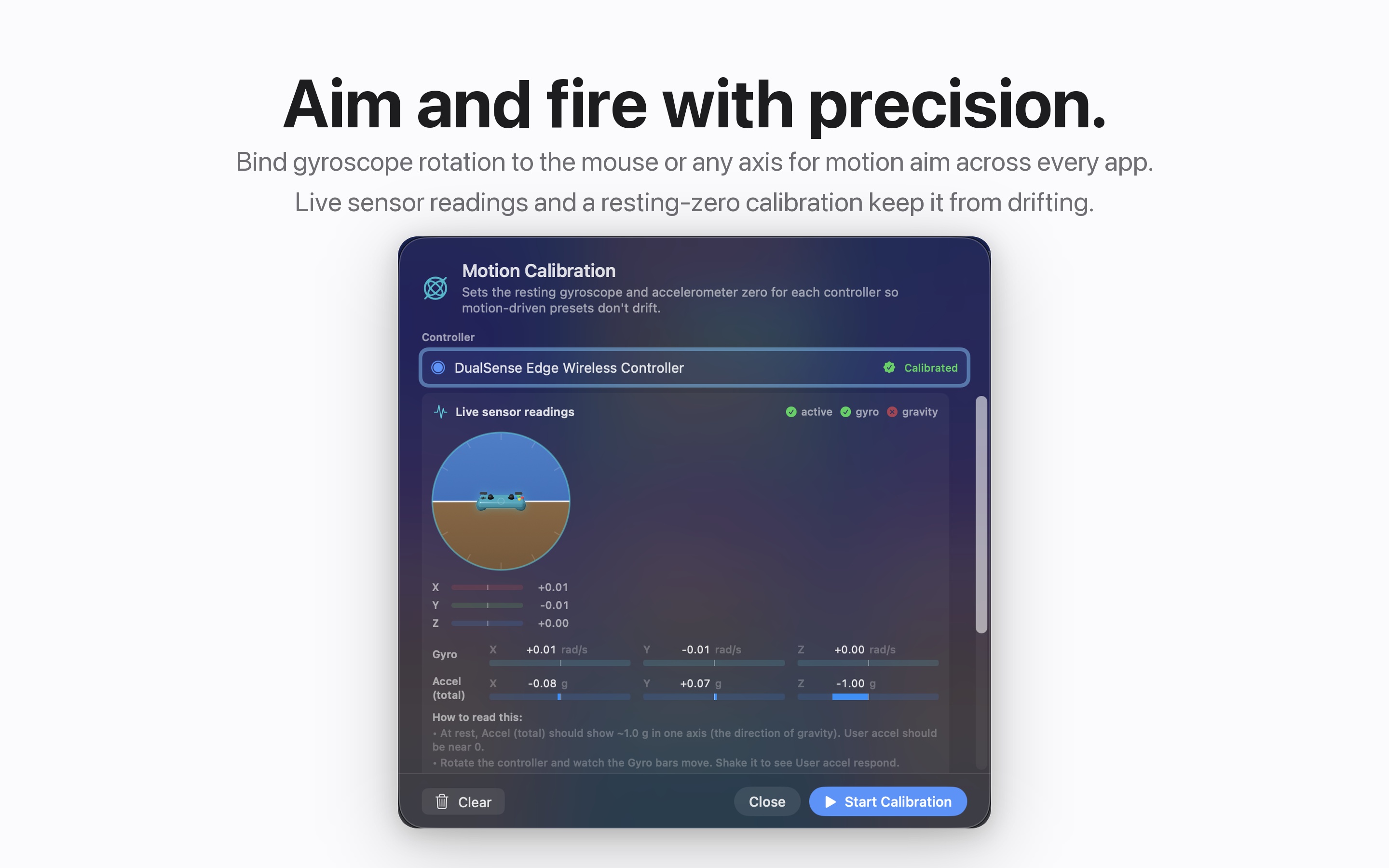
Gyro aim rides the same pipeline. The controller's rotation rate feeds the mouse path with its own gain, per-controller drift calibration is a stored subtraction so a controller at rest reads zero, and tilt angles are derived from the quaternion by hand with the arcsine argument clamped, because floating point drift past one returns NaN and NaN in a motion path poisons everything downstream. That is not hypothetical. A DualSense fresh off a connect can briefly publish NaN motion, so the accumulators are guarded too.
Reverse-engineering the DualSense
Apple's framework covers the common controllers well, and then stops. The DualSense Edge's back paddles, function buttons, and mute are simply not in Apple's profile for the device, I verified that against the live profile dump. If I wanted them bindable, and paddles are perfect for fingers that cannot reach the front of a controller, I had to go get them from the raw HID reports myself.
The extra buttons live in one byte of the controller's input report, at offset 10 over USB and offset 11 over Bluetooth, because the Bluetooth report carries an extra sequence byte. Finding that meant building a change detector that logged which bytes flipped when I pressed a paddle, with the motion sensor and counter bytes explicitly excluded, because those change 250 times a second and bury the signal. The verified observation is still in the code as a comment: an Edge FN press flips byte 11, bit 4, while the sticks sit quiet and the d-pad idles.
Bluetooth added a second twist: while the system's controller session is active, my in-process HID connection receives no streamed input reports at all. But device requests still go through. So over Bluetooth the app synchronously polls the report thirty times a second instead, and stands down automatically for any controller where streaming is working. Three redundant paths to the same eight bits, because a paddle that works on USB but silently dies on Bluetooth is worse than no paddle at all.
The light bar was the same kind of fight in the other direction. The Bluetooth output report is 78 bytes with a CRC-32 checksum at byte 74, computed over a prefix byte plus the whole payload. My original packet omitted a single tag byte near the front, which shifted every field by one and put the CRC at the wrong offset, and the controller silently discarded every packet. No error, no log, just a light that never changed. Once the tag byte went in, everything lined up, and then macOS 26 started repainting the LED on its own loop, so the app now re-asserts the color 60 times a second from a private queue, with the CRC precomputed through a lookup table because the naive bit-serial version was doing six hundred shifts per packet.
Driving with one stick
The most accessibility-dense feature in the app is drive mode, built for playing driving games with a single stick. Games want binary keys held down, but a stick gives you analog, so the engine converts stick depth into pulse-width modulation on the key itself: at half throttle, the accelerator key is genuinely down half the time, in a fast duty cycle the game reads as partial throttle. The duty math guarantees at least one off-tick per period so there is no silent dead band, a reverse gear is engaged by tapping the stick full-back against the end stop a configurable number of times, and on the exact frame you shift back into drive the stale full-forward reading is suppressed so the car does not lurch. There is even a coast brake that holds light braking when the stick is centered, safe because the duty accumulator always takes the maximum and can never fight a real input.
MIDI as a first-class citizen
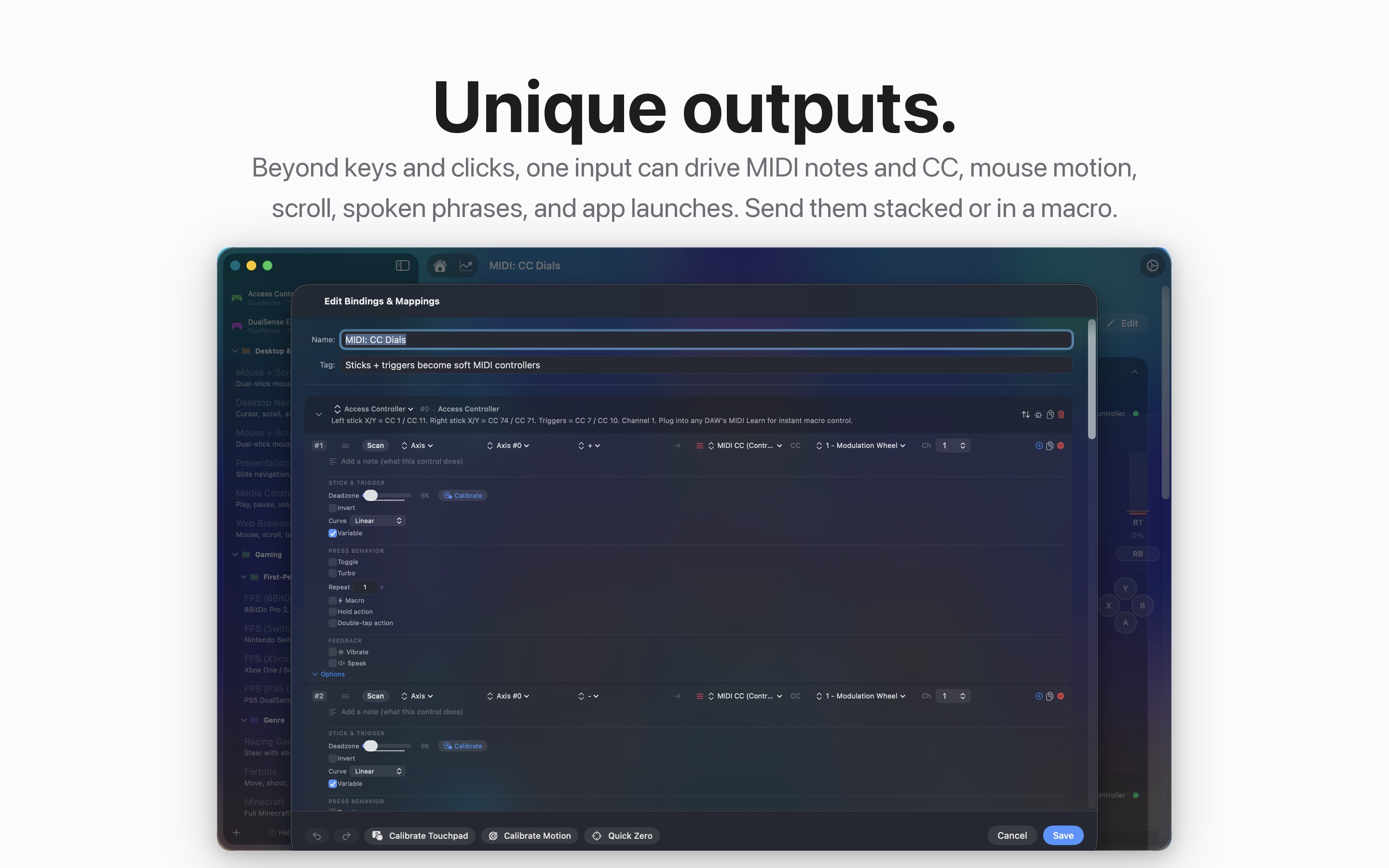
Since version 1.2, MIDI runs in both directions. A MIDI keyboard or pad controller can drive the Mac entirely on its own, notes, pads, knobs, pitch wheel, sustain pedal, and aftertouch all bindable, with no game controller attached. Going out, the app exposes a virtual MIDI source, deduplicates continuous controller values so an analog stick does not flood your DAW with identical messages 120 times a second, and on stop sends a proper panic sequence, per-note offs, All Notes Off, and Reset All Controllers across all sixteen channels.
The MIDI bug I will remember longest: the virtual source's unique ID was originally derived from a Swift string hash, and Swift string hashes are randomly seeded per process. Every launch, a new ID. Every launch, every DAW on earth forgetting its saved connection to the app. The ID is now generated once and persisted, like it always should have been.
The performance war
Version 1.1 was largely a performance release, and the root cause of almost every problem was the same: publishing hot state to the UI. At one point a published property was written on every input event, at Bluetooth report rate, 250 times a second. Nothing read it. Each write still forced a full re-layout of every observing view, and holding a stick pinned the main thread above 90 percent CPU. The fix across the whole codebase was de-publishing: hot state became plain variables, and the UI reads snapshots at its own cadence instead of being shoved every frame.
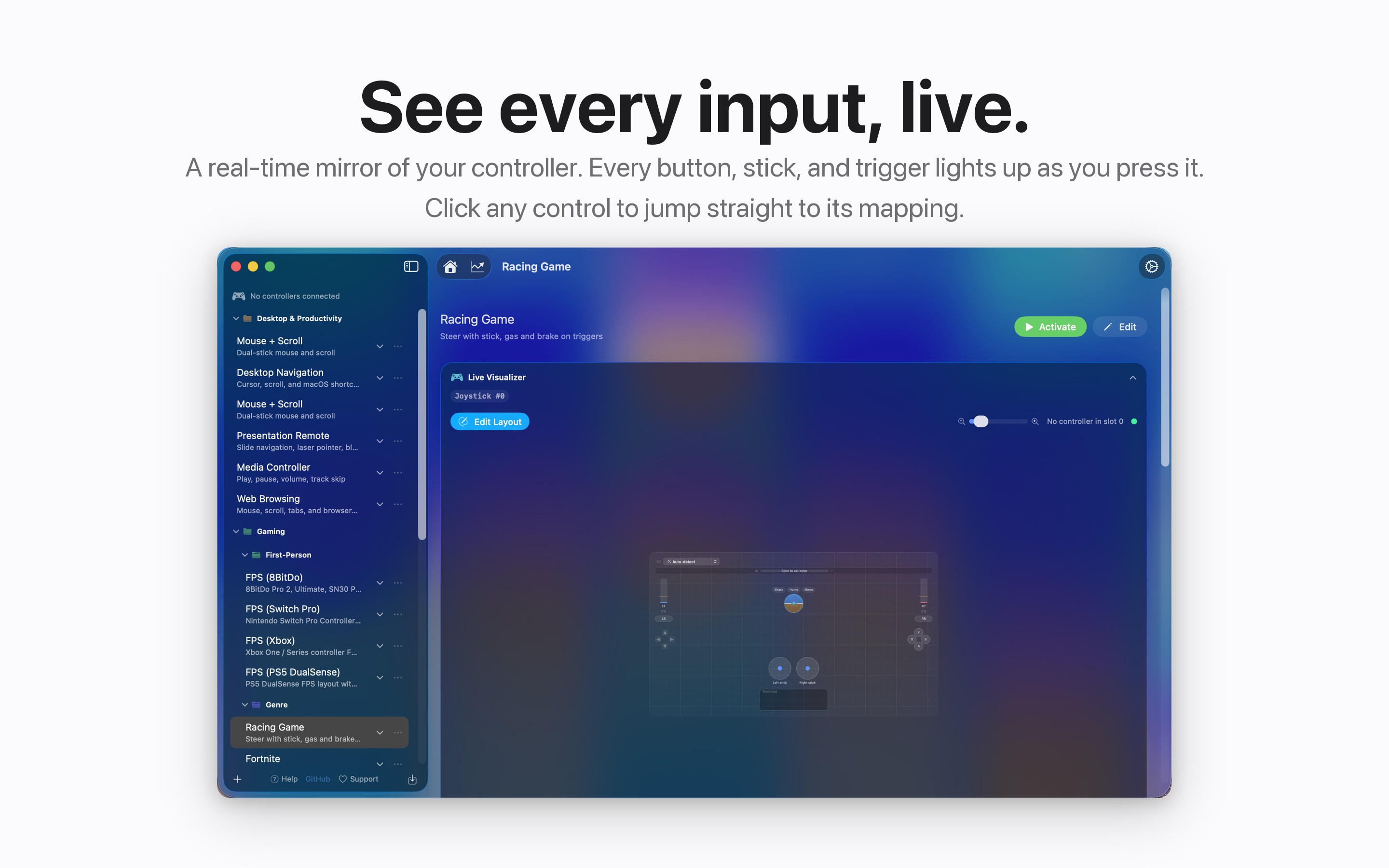
The live visualizer got the subtlest version of this. Its 30 frames-per-second clock now pauses when the controller is idle, but detecting idle is trickier than it sounds, because gyro jitter means the numbers never stop changing. So idleness is a quantized render signature, every value snapped to a coarse grid before comparison, and if the signature holds still for seven tenths of a second the clock stops. The gating flag has to be state the view body actually reads, or SwiftUI never re-evaluates it. That one sentence cost me a serious debugging weekend, because the naive version of this froze the whole app.
The hot path is also allocation-free by policy. The old highlight bookkeeping alone allocated nearly four thousand sets per second at 120 Hz across four controllers, all replaced by reused scratch buffers and memoized keys. And a one-second watchdog on a background queue pings the main thread and records a real freeze if the heartbeat goes stale for fifteen seconds, writing the record from the watchdog queue itself, because if the main thread is hung, asking the main thread to write the report would be a very polite way of losing it.
One app, many lives
Because the mapping is so open, the same install ends up doing very different jobs depending on who is holding the controller. One preset turns a DualSense into a careful, deadzone-tamed pointer for everyday Mac work, with the touchpad acting as a calibrated mouse. Another turns it loose for a first-person game with the sensitivity cranked. Another sends MIDI so the sticks and pads run a music performance, and another reads a comic one page per button press. None of those are separate tools. They are just presets, and switching between them is fast.
I like that InputConfig does not force a person to identify as one type of user. You are not a gamer or a disabled person or a musician in its eyes, you are just someone with a device in your hands and something you want the computer to do. The app's only job is to close the distance between those two things.
Where it stands
InputConfig is free on the Mac App Store, open source on GitHub, and everything runs locally with no telemetry. Everything about it lives at inputconfig.com: help for every feature, setup guides, and ready-made presets for more than 450 games and apps. VoiceOver users get labeled controls and a scan overlay that speaks what it detected. I am still adding to it, still tuning the parts that touch my own daily use most, and still finding cases where a small option makes a big difference for someone whose hands work differently than mine. That feedback loop, where I am both the developer and an actual end user who depends on the thing, keeps it honest.
If there is one takeaway, it is that the line between assistive technology and ordinary technology is thinner than people assume. A lot of accessibility is just giving someone the freedom to choose their own input, and then making that input capable of doing everything. That is what I wanted for myself, and it turned out to be worth building for other people too.
Written by Ryleigh Newman